
Save any video on the web as one MP4, with sound. Including the HLS and DASH streams other extensions save broken, silent or unplayable.
Three clicks. One clean file.(03)
Play
Open any page with a video. It's detected automatically, and the toolbar badge shows how many were found.
Pick
Quality with file sizes, audio language, subtitles, MP4 or MKV, or just the part from 12:30 to 18:00.
Grab
Picture and sound are fetched in parallel and merged into a standard MP4 that plays on any device.
Everything a downloader should do.(08)
- 01
One MP4, with sound
Separate video and audio streams merged automatically into one regular file.
- 02
Plays everywhere
VP9, AV1 and HEVC converted to H.264 in your browser. Opens in QuickTime, on iPhone, Windows and TVs.
- 03
Clips & subtitles
Save only part of a video. Subtitles embedded, as .srt, or both.
- 04
A real queue
Pause, resume even after a browser restart, retry, several at once, "Download all".
- 05
Live & ad-free
Record live streams until you press Stop. Ad breaks skipped, picture and sound in sync.
- 06
Audio only
M4A with no quality loss, or MP3 — with title and cover art.
- 07
Your names, your folders
Templates, subfolders, per-site rules, Save As, rename before saving.
- 08
Capture what's playing
Stream links hidden? Record what the player loads while you watch.
Pick exactly what you need.
See the file size before you download. Choose the quality, the language, the subtitles — or save just the part you want.
- 01Quality, with real sizes4K · Full HD · HD labels and an estimate for each.
- 02One file, with soundPicture and audio merged into a single MP4.
- 03Subtitles your wayInside the video, as .srt, or both.
- 04Just the part you needSet a start and end — only that bit downloads.
Also: audio language · title & cover art · side panel · right-click · Alt+Shift+D
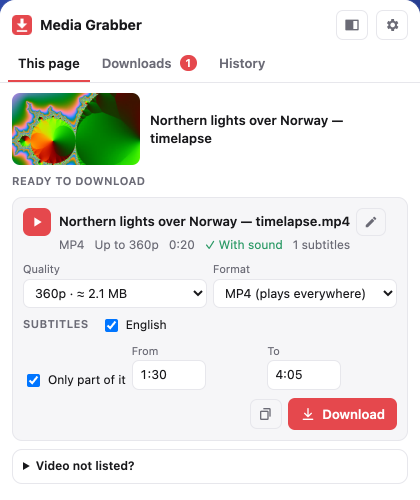 01Quality + size
02With sound
03Subtitles
04Clip 1:30 → 4:05
Nothing about what you watch leaves your device. Ever
Questions.(08)
01Why doesn't it work on YouTube?
The Chrome Web Store doesn't allow YouTube downloaders, and downloading is against YouTube's terms. The extension tells you so instead of saving broken files.
02Why not Netflix, Disney+ or Prime Video?
Those videos are protected with DRM. Media Grabber never circumvents copy protection.
03The video isn't listed. What can I do?
Play the video for a few seconds, then open Media Grabber again. If it still isn't listed, reload the page. As a last resort, open "Video not listed?" and use "Capture what's playing".
04Where are my files?
In your browser's Downloads folder (or the subfolder you set). Use "Show in folder" in the Downloads tab.
05Is there a size or daily limit?
No. Pieces are written to disk as they download, so multi-hour videos work, and there's no waiting between downloads.
06How do I change the keyboard shortcut?
Chrome: chrome://extensions/shortcuts. Edge: edge://extensions/shortcuts. Firefox: Add-ons → gear → Manage Extension Shortcuts.
07What permissions does it need, and why?
Each one is listed with what it's used for — and what it's never used for — on the permissions page. Nothing is sent to us; there are no servers, analytics or accounts.
08Something went wrong. How do I report it?
Open Settings, click "Copy diagnostics", and email it with the website's address to chiragtc.dev@gmail.com.